
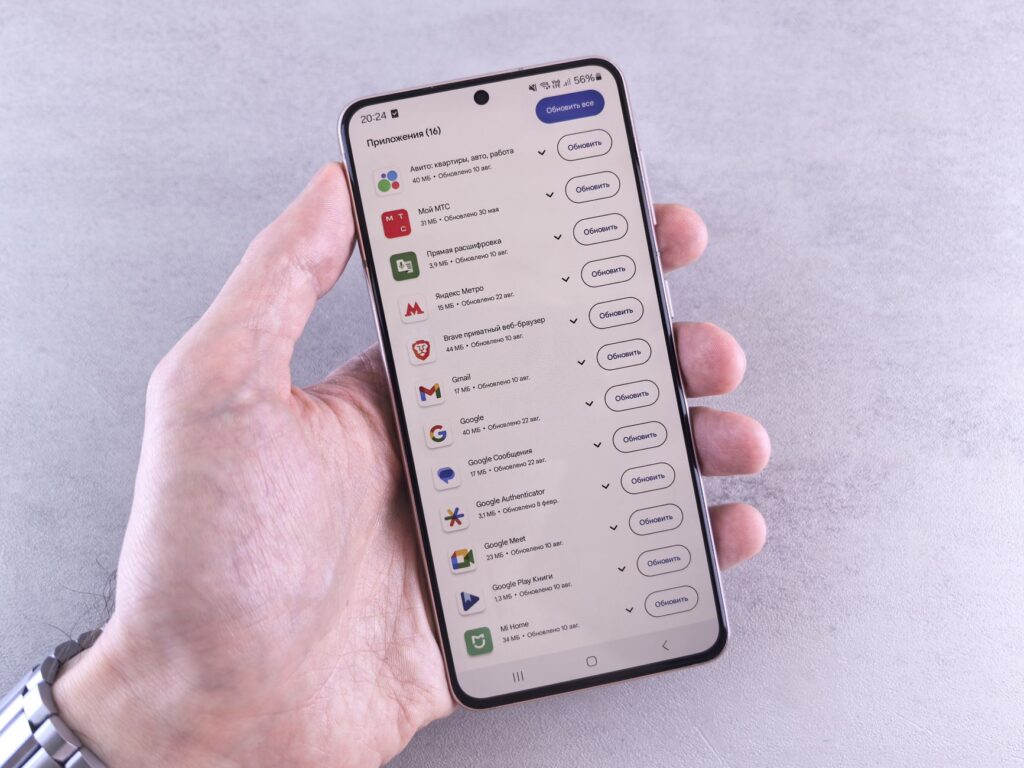
The Windows 11 update issue has caused significant problems for users, including black screen errors and Explorer crashes. Thankfully, Microsoft has provided a solution.
Understanding the Windows 11 Update Issue
The recent Windows 11 update issue has left many users grappling with frustrating black screen errors and unexpected crashes of Windows Explorer. After the rollout of the latest update, a significant number of users reported encountering a persistent black screen upon booting their devices, making it impossible to access their desktops. This issue has raised concerns about system stability and performance.
Microsoft has acknowledged the problem and is actively working on solutions to mitigate the impact on affected users. The black screen errors typically arise after certain updates, which can sometimes lead to conflicts with existing software or driver incompatibilities. Users have been advised to remain patient as Microsoft resolves these issues.
In the meantime, some users have found temporary relief through a series of troubleshooting steps. These include:
- Booting into Safe Mode to revert recent changes
- Updating graphics drivers to the latest versions
- Running system scans to check for file corruption
By following these steps, users may be able to circumvent the Windows 11 update issue until a permanent fix is deployed.
Symptoms of Black Screen Errors
Users experiencing the Windows 11 update issue may encounter several symptoms indicating a black screen error. These symptoms can vary in severity and impact, but here are some common signs:
- Complete Black Screen: The most apparent symptom is a total black screen upon booting up the computer, rendering it unusable.
- Intermittent Black Screens: Some users may notice the screen flickering to black intermittently while navigating through applications or the desktop.
- Windows Explorer Crashes: Frequent crashes of the Windows Explorer may occur, leading to the inability to access files and folders.
- Unresponsive System: The system may become unresponsive, requiring a hard reboot to regain control.
- Driver Issues: Users may experience problems with graphics drivers, which can exacerbate the black screen issue.
Identifying these symptoms is crucial for users who might be affected by the recent Windows 11 update issue. Recognizing these signs can help in seeking timely solutions to restore normal functionality.
How to Fix Windows Explorer Crashes
Experiencing crashes in Windows Explorer after the latest Windows 11 update issue can be frustrating. Fortunately, there are several quick fixes you can try to resolve this problem.
First, consider restarting Windows Explorer. To do this, follow these steps:
- Right-click on the taskbar and select Task Manager.
- Locate Windows Explorer in the list of processes.
- Right-click on it and select Restart.
If the issue persists, you might want to update your graphics drivers. Outdated drivers can lead to compatibility issues with the new Windows 11 update. To update your drivers:
- Press Windows + X and select Device Manager.
- Expand the Display adapters section.
- Right-click on your graphics card and select Update driver.
Finally, if none of these solutions work, consider running the System File Checker to repair any corrupted files that may be causing the crashes.
Microsoft’s Response to User Complaints
In response to the growing number of user complaints regarding the Windows 11 update issue, Microsoft has acknowledged the problems associated with black screen errors and Windows Explorer crashes. The company has been actively investigating these issues, which have affected many users since the last major update.
Microsoft’s support team has released a statement emphasizing their commitment to addressing these concerns promptly. They have outlined several steps that users can take while they work on a permanent fix:
- Update Drivers: Ensure that all graphics drivers are up to date to reduce the chances of encountering errors.
- Check Windows Updates: Keep an eye on further updates from Microsoft that may include additional fixes.
- Safe Mode: Start Windows in Safe Mode to troubleshoot and identify any conflicting software.
Furthermore, the company is encouraging users to report their experiences through the Windows Feedback Hub, as this data will assist in resolving the Windows 11 update issue more effectively. Microsoft is dedicated to improving user experience and is working diligently to ensure reliability with future updates.
Step-by-Step Guide to the Fix
If you’re experiencing a black screen after a recent Windows 11 update, follow this step-by-step guide to resolve the issue quickly. This fix is designed to help you regain access to your desktop and restore functionality.
First, try to boot your computer in Safe Mode. Here’s how:
- Restart your PC and as it boots, press the F8 key repeatedly.
- Select Safe Mode with Networking from the options presented.
Once in Safe Mode, you can perform the following:
- Right-click on the Start Menu and select Device Manager.
- Expand the Display Adapters section and right-click on your graphics card.
- Select Update Driver and follow the prompts to install the latest version.
After the driver update, restart your computer normally. If the black screen issue persists, consider rolling back the recent Windows 11 update. This should resolve any conflicts caused by the update.
By following this guide, you can effectively address the Windows 11 update issue related to black screen errors.
User Reactions to the Update
Users have expressed a range of reactions to the recent Windows 11 update issue that has led to black screen errors. Many reported experiencing significant disruptions to their daily computing tasks, with some users unable to access their desktops entirely. The frustration among the community has been palpable, especially for those who rely on their devices for work or personal projects.
On various forums, users shared their experiences:
- “I couldn’t believe it when my screen went black right after the update. It was like my computer just vanished!”
- “I lost hours of work because of this issue. Microsoft needs to do better.”
- “I’m just relieved there’s a fix available. I was starting to lose hope.”
Despite the initial backlash, some users have praised Microsoft’s efforts to address the problem quickly. Many are hopeful that the company will continue to improve its update process, minimizing issues in the future. The experience has sparked conversations about the importance of robust testing before major releases.
Future Updates and Improvements
As Microsoft continues to address the Windows 11 update issue, users can expect a series of future updates aimed at improving system stability and performance. The company has acknowledged the concerns raised by users and is committed to delivering enhancements that will prevent similar problems from occurring in the future.
Upcoming updates will focus on:
- Enhanced Graphics Drivers: Microsoft is working closely with hardware manufacturers to ensure that graphics drivers are optimized for Windows 11, reducing the likelihood of black screen errors.
- Improved Compatibility: Future patches will seek to enhance compatibility with various software applications, minimizing conflicts that can lead to crashes or display issues.
- Regular Feedback Loop: Microsoft plans to implement a more robust feedback mechanism, allowing users to report issues in real-time, helping the company prioritize fixes effectively.
- Performance Monitoring Tools: New tools will be introduced to help users monitor system performance, providing insights into potential issues before they escalate.
By actively engaging with the community and focusing on these areas, Microsoft aims to restore confidence in their updates and ensure a smoother user experience moving forward.
Conclusion: Staying Informed on Windows 11
In conclusion, staying informed on the Windows 11 update issue is crucial for users experiencing related problems. Keeping abreast of the latest developments from Microsoft can help mitigate frustration and enhance the user experience. Here are some key takeaways:
- Regular Updates: Microsoft is committed to addressing issues promptly, so make sure to check for updates regularly.
- User Feedback: Engaging with user feedback can lead to quicker resolutions and improved features in future updates.
- Community Support: Participating in forums and community discussions can provide additional insights and solutions from fellow users.
- Backup Important Data: Always back up your data before applying updates to safeguard against unexpected issues.
- Monitor Performance: After applying fixes, keep an eye on system performance to ensure that the issues have been resolved.
By remaining proactive and informed, users can navigate the challenges associated with the Windows 11 update issue more effectively, ensuring a smoother computing experience.
Photo by Andrey Matveev on Pexels
References

[…] Windows 11 Update Issue: Quick Fix for Black Screen Errors · iPhone Duo pre-orders: Is it the best deal for you? · PS5 Game Store Shutdown: Worst Move for Gamers […]